 Help Center
WordPress and WooCommerce: add ORYKSA to your website
Install the ORYKSA AI Employees plugin, connect in one click and your AI answers visitors, learns your site and helps shoppers buy.
With the ORYKSA AI Employees plugin your AI employee answers the visitors of your WordPress website, in their language, with the name and photo you chose in Your AI. On a WooCommerce store it also recommends products, adds them to the cart and takes the shopper to checkout.
Install and connect (about 2 minutes)
Upgrading: if you had the previous version installed, deactivate and delete it before activating this one.
- In your WordPress admin open Plugins > Add New Plugin and search for ORYKSA AI Employees (or open wordpress.org/plugins/oryksa).
- Click Install Now and then Activate.
- Open Settings > ORYKSA AI Employees and click Connect to ORYKSA.
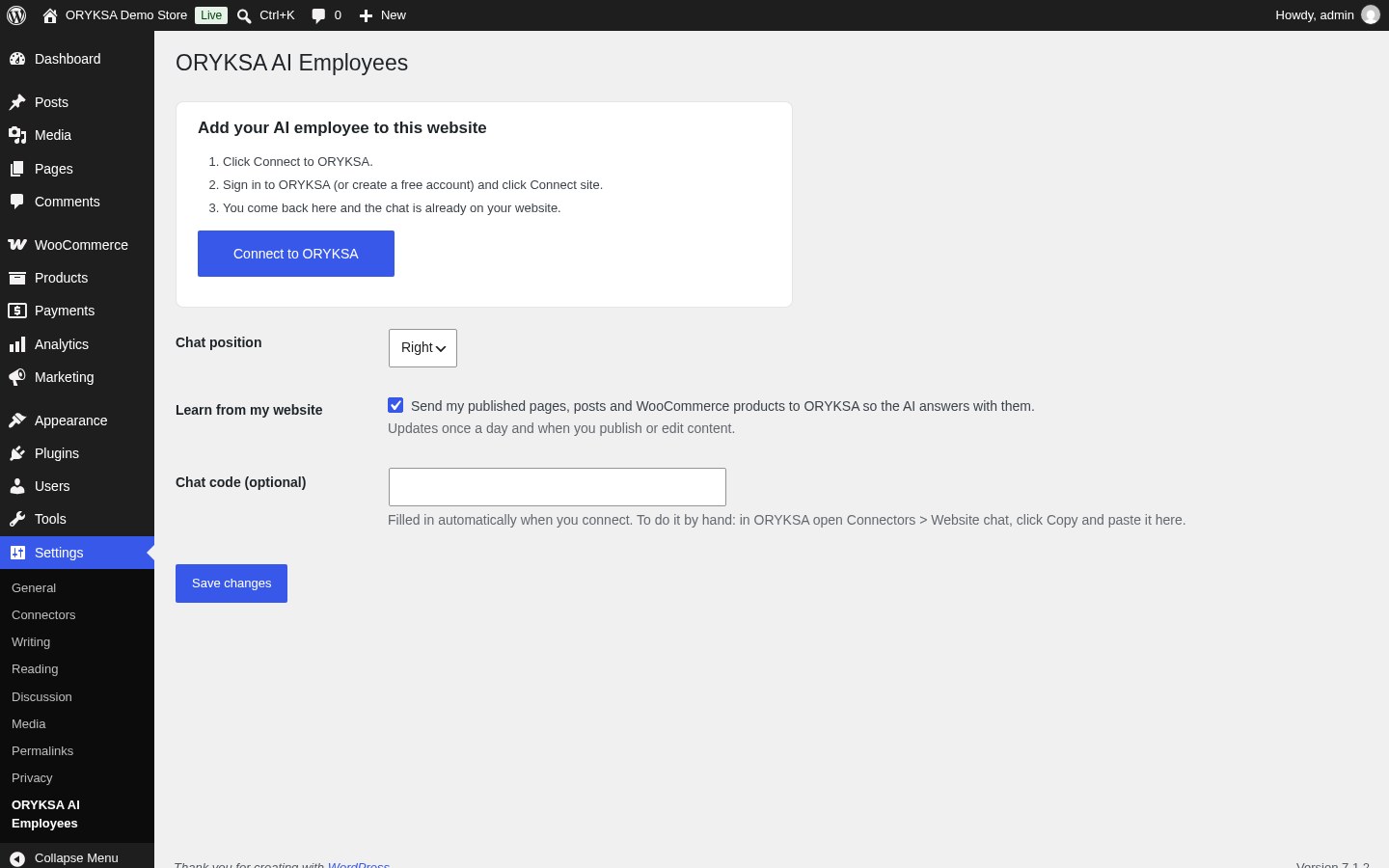
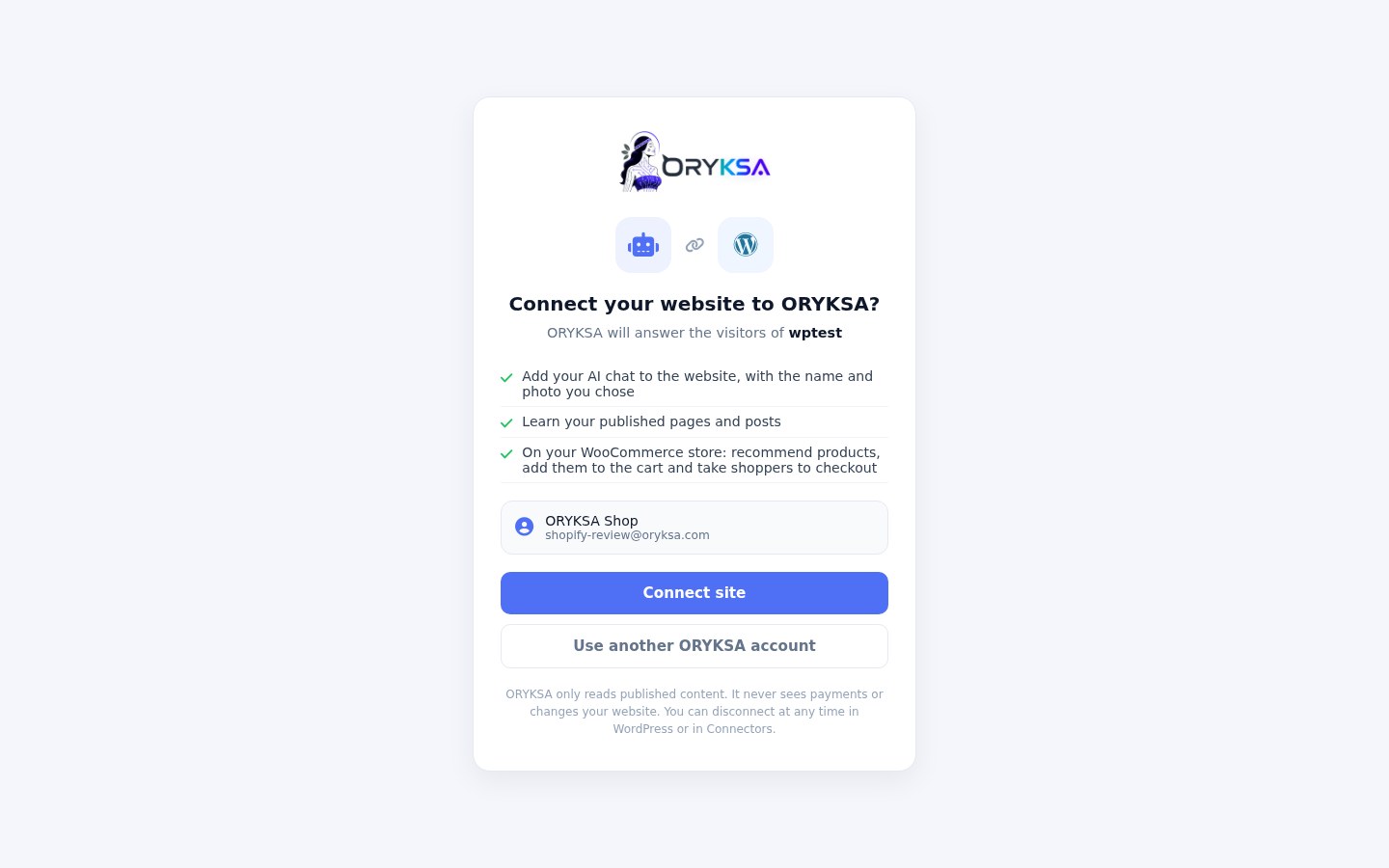
- Sign in to ORYKSA (or create a free account) and click Connect site.
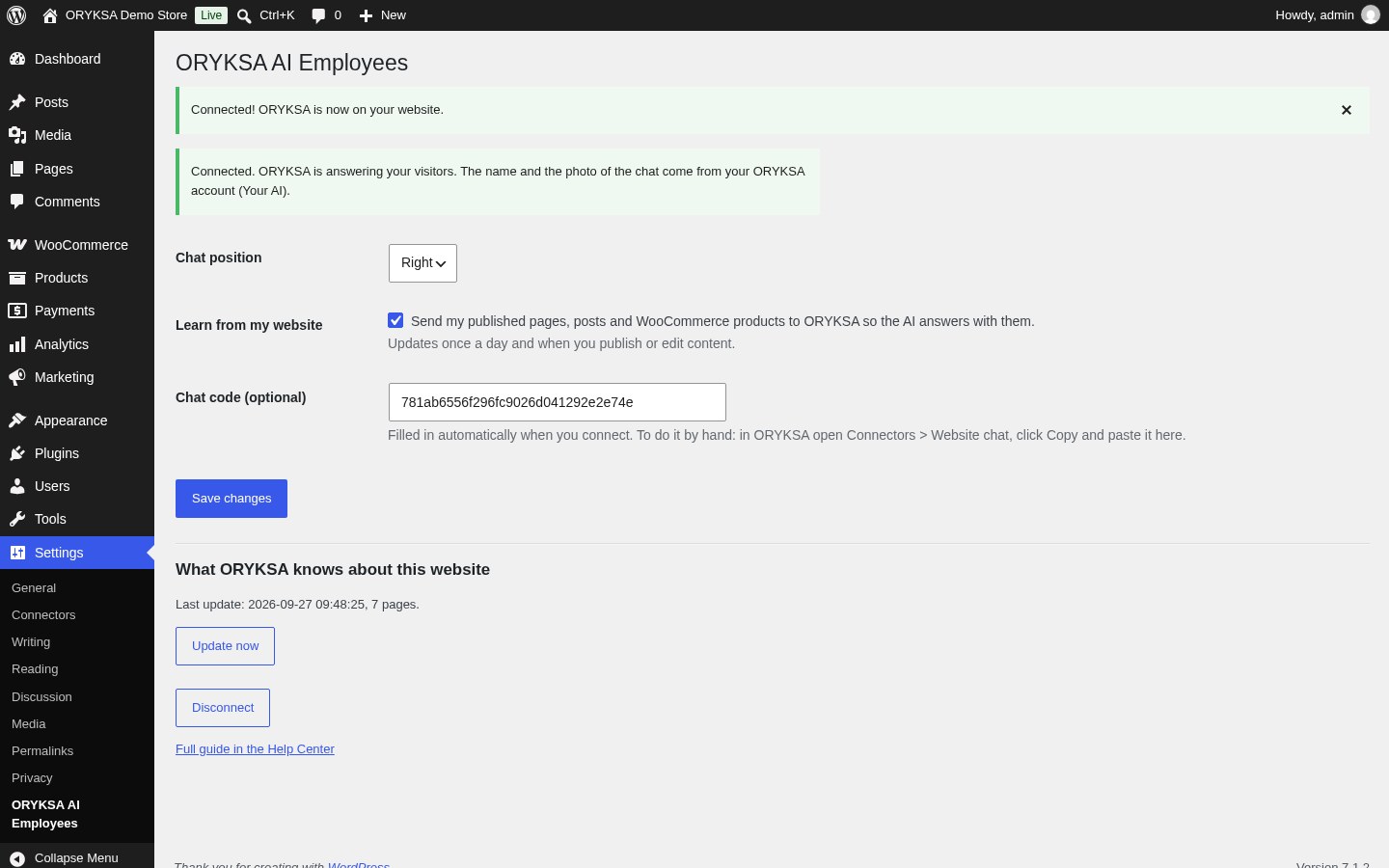
- You go back to WordPress and see Connected!. The chat is already on your website.
What the plugin does
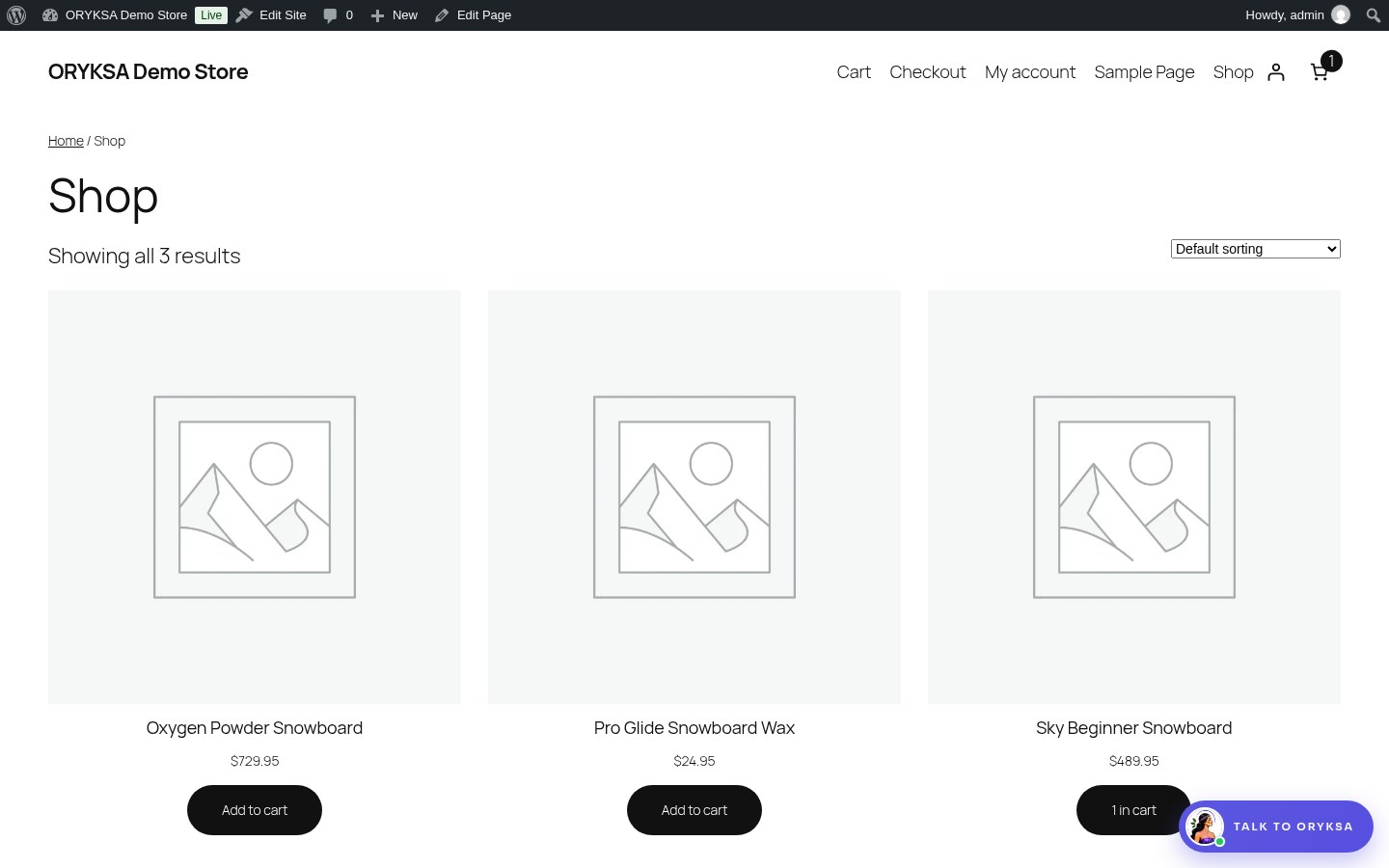
- Shows your AI chat on every page, with the name and photo from Your AI. Change them in ORYKSA and the website updates on the next visit.
- Learns your published pages, posts and WooCommerce products (prices, stock and options), once a day and a couple of minutes after you publish or edit.
- On WooCommerce: opens the product page, adds the right product or option to the cart and opens checkout for the shopper.
- Sends you an alert (bell, push and email) when a shopper buys after talking to the chat, and tags that conversation as sale in Activities.
How to check it is working
- Open your website in a private window: the chat button is in the bottom corner.
- Ask a question about something on your site, for example the price of a product. The answer should use your real content.
- In ORYKSA open Activities: the conversation is there and you can reply live.
- In ORYKSA open Connectors > WordPress: your website is listed under Connected websites.
Common problems
- The chat does not show: check the plugin is active and that Settings > ORYKSA AI Employees says Connected. If you use a cache plugin, clear its cache.
- The link expired: you took more than 30 minutes on the ORYKSA page. Click Connect to ORYKSA again.
- The AI does not know a new product or page: in Settings > ORYKSA AI Employees click Update now.
- The website chat is not in your plan: the page tells you when you connect. See Billing to change plan.
- I want to remove it: click Disconnect in Settings > ORYKSA AI Employees, or deactivate the plugin.
Costs
Each AI reply on your website counts as one interaction of your plan, the same as on WhatsApp.
Advanced: you can still connect a WordPress site by hand in Connectors > WordPress > Connection with a WordPress application password, to let the AI read the site without the chat.
Didn't find what you need?
Open a support ticket and we'll get back to you fast.
Open a support ticket